The 2026 Summer Session of the USPAS Fundamentals of Accelerator Physics course will use the Python programming language, as implemented in Jupyter Notebooks, for several of the simulation labs, as well as for the homework exercises that use Xsuite, which has replaced MADX as the official accelerator simulation platform of CERN.
It’s much easier to set up and run these things on your own computer, and it will make things easier if you set this up in advance, particularly if you’re using a university- or lab-managed computer, for which it might require IT assistance.
The simulation labs should run on pretty much any platform (MacOS, Windows, Linux, or Chrome), while to run Xsuite under Windows, you will need to install Windows Subsystem for Linux (WSL).
If setting up your own instance of Python/Jupyter proves unworkable, there’s the option of using Google Colab online, but it’s a bit cumbersome.
An intermediate option for Windows users would be to run the simulation labs on a Windows instance of Python/Jupyter and just use Google Colab for Xsuite.
For the sake of consistency, it’s strongly advised that you set up an Anaconda/Miniconda environment for this course, even if you have your own instances of Python and Jupyterlab.
The following are a minimal set of commands to do this, but feel free to tailor them to your needs if you’re an expert and already have anaconda or miniconda installed.
Setting up Windows Subsystem for Linux (WSL) on Windows (requires admin privilege)
Open a Command or PowerShell window and type
wsl --install
This will install an Ubuntu Linux virtual machine. Accept all defaults. You will need to create a username and password. I suggest you use the same ones you use to log into Windows.
Afterwards, you will need to restart the system, after which, you can launch WSL by opening a command window and typing
wsl
This will launch WSL in whatever directory you are in. Note that the Windows “C:” drive appears as
/mnt/c
in WSL.
From a WSL window, type
sudo apt install firefox
and provide your password. This will take a while.
Once this is done, follow the instructions for Linux.
Installing MiniConda
MacOS/Linux/WSL
If you have a Mac and you don’t already know what type of processor chip it has, do “(Apple)->’About this Mac'” to determine this. Recent Macs will have an Apple M1/M2/M3 chip, while older ones will have an Intel x86.
Open a command window and copy and paste the appropriate line below
Mac with M1/M2/M3
curl -O https://repo.anaconda.com/miniconda/Miniconda3-latest-MacOSX-arm64.sh
Mac with Intel x86
curl -O https://repo.anaconda.com/miniconda/Miniconda3-latest-MacOSX-x86_64.sh
Linux/WSL
curl -O https://repo.anaconda.com/miniconda/Miniconda3-latest-Linux-x86_64.sh
Once you have downloaded the correct version, run it by typing
bash Miniconda-latest-(correct version).sh
and accepting any required agreements. Once miniconda has been installed, you will need to close and reopen the window to fully activate it.
You’ll notice that there’s an annoying “(base)” prepended to every command line. You can get rid of this by typing.
conda config --set auto_activate false
This change will not take effect until the next time you reopen the window.
Windows (simulation labs only, not Xsuite!)
Follow the instructions here. Afterwards, you will have “Anaconda Prompt” as a menu option.
Setting up the Conda environment
From a terminal window (MacOs, Linux, or WSL) or Anaconda Prompt (Windows), type
conda create -n uspas jupyterlab pip
This will create an environment called “uspas”. Activate it by typing
conda activate uspas
You’ll now see “(uspas)” at the beginning of each command line. Now type
pip install numpy matplotlib scipy pandas ipywidgets
If you are running on MacOS, Linux, or WSL and intend to run Xsuite, additionally type
pip install cpymad xsuite xplt
Now you should have all the software installed that you need.
You can always exit the conda environment later by typing
conda deactivate
or simply closing the window.
Starting and Testing Jupyter Lab
Open a window, activate the uspas environment (always remember to do this!), and navigate to the directory you want to work in. I recommend you create a clean directory for USPAS work.
Download the three files this directory to your work area.
On MacOS or Linux, type
jupyter lab
On WSL, type
juypyter lab --browser /usr/bin/firefox
This will open a browser window and connect it to your Jupyter server. Your window should look something like this.
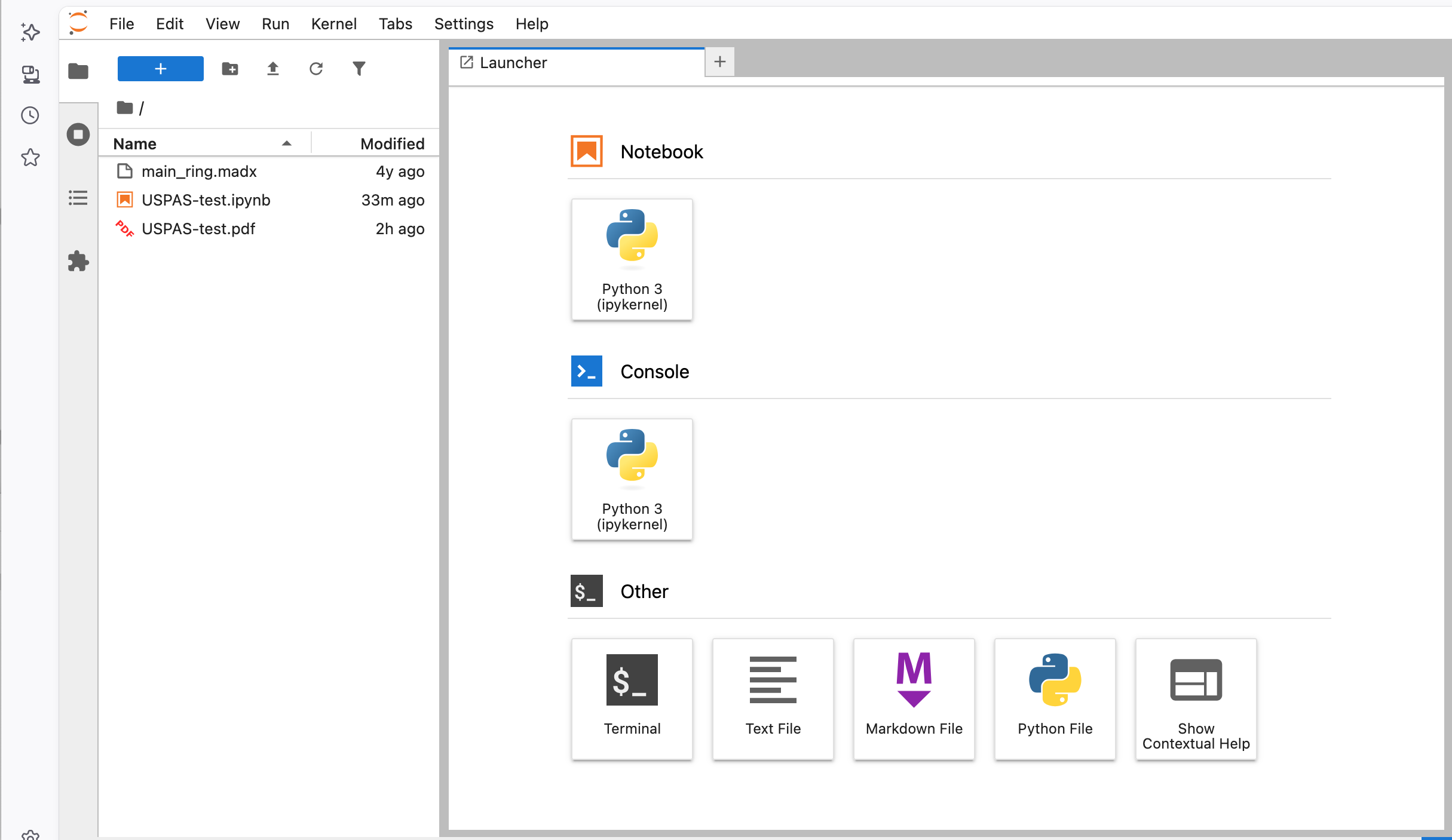
Double click on the file “USPAS-test.ipynb” to launch the notebook. The first part tests the basic functionality needed by the labs, while the second part tests Xsuite and cannot be run directly from Windows.
Run all the cells sequentially. There should be no warnings of errors. When you are finished, your output should look like the file “USPAS-test.pdf”.
Note that if you simply exit the browser window, the server will continue to run. You can shut it down, by either selecting “File->Shut down” from the Jupyterlab menu, hitting <cntl>-c from the terminal window, or closing the terminal window altogether.
Be careful not to start two different servers looking at the same files, because this can result in very bad things!
Running Notebooks with Google Colab
Google Colab is an online Jupyter Notebook environment that’s almost good, but there are a couple of annoying features and a few bugs.
Google Colab will access files via your Google Drive. If you are locally syncing your Google Drive, this will be at “(local mount point)/My Drive”.
Go to Google Drive, log in with your preferred credentials, and click “My Drive” at left, and create a work area. I’ll assume it’s “USPAS”. Upload the three test files here to that area (if you have the drive synced to your local computer, you can just down them there and wait for them to sync.
Now access this area in your online Google Drive and double-click on “USPAS-test.ipynb”. This will open the file in a Google Colab window.
Here’s the weird part. Even though you opened the file from Google Drive, your notebook does not have access to your Google Drive, and by default will work in a volatile area that disappears when the session ends.
Click “+code” at the top, copy and paste in the following cell and execute it.
from google.colab import drive
drive.mount('/content/drive',force_remount=True)
%cd /content/drive/MyDrive/USPAS
This will walk you through some steps to connect to your google drive. Some of the popup windows are small, so you may have to scroll down to get to the “Continue” button.
The Colab environment comes with a lot packages installed, but you’ll need a few others to to run this code. Hit “+code” again, copy and paste the following cell and execute it.
!pip install cpymad xsuite xplt
Now in principle, opening this notebook creates a “runtime” that will remember that these libraries are installed if you open the notebook again, but in practice this doesn’t always work and it’s best to do it each time.
These additions should be auto saved to your Google Drive.
Now execute all the cells and you should see the results in the “USPAS-test.pdf”.
Troubleshooting
Sometimes, you’ll fail at the drive.mount() step, or you’ll see the file failing to save. When this happens, the best steps are:
- Do “Runtime”->”Disconnect and delete runtime”
- Do “Runtime”->”Manage Sessions” and delete all sessions.
- Clear your cache back to at least when you started working.